
Mobile web app
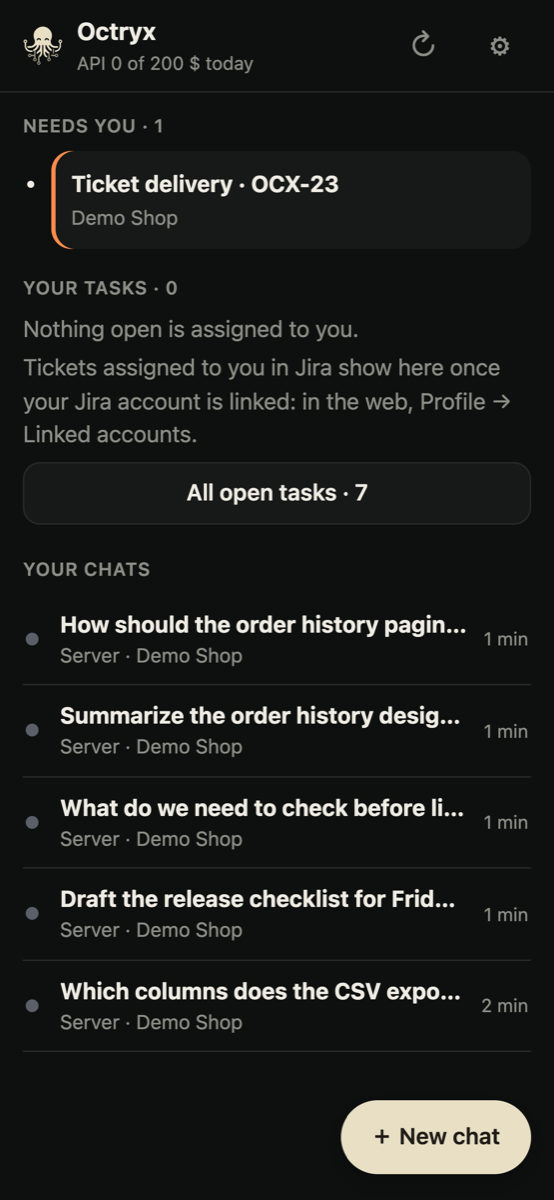
The mobile web app puts what needs you, your runs, your Work items and your chats on your phone, and lets you start or continue a chat from there.
What it is
The mobile web app is a small version of Octryx AI that you open from your phone's Home Screen. It runs in the browser; there is nothing to install from a store. You pair the phone once with your Mac. After that it acts as you, with your rights, until the pairing expires or you revoke it. It reaches only what the app needs: no admin pages and no credentials. Use it to answer approvals, steer runs and continue sessions while you are away from your desk.
Pair your phone
You pair from your Mac, where you are already signed in with octryx-claude.
On your Mac, choose Connect iPhone… in the Octryx menu, or run:
bashoctryx-claude mobile pairThe terminal shows a QR code, valid for two minutes.
Scan it with your phone's camera. Connect your iPhone opens and shows a two-digit number.
Your Mac opens a page in the browser where you are signed in to Octryx AI. It shows the same number. If it matches, choose Connect; otherwise Decline.
On the phone, tap Share, then Add to Home Screen. Open Octryx AI from the Home Screen.
If the app asks for a code, type the code from the pairing page into Code from the pairing page and tap Sign in. The code works once and is valid for 15 minutes.
Your phone must reach your Octryx AI platform, for example through your company VPN. You can start at most five pairings in ten minutes. If a code expired or was declined, start again on your Mac.
Find your way around
A bar at the bottom has five tabs: Home, Chats, Runs, Work and More. One Workspace switch at the top applies to all of them. A chat, a run or a Work item opens as a page above the tabs.
Home
- The usage line under the title: your seat use (for example
Seat 40 % (5h), the tighter of the 5-hour and 7-day windows) and the Workspace's API budget today (for exampleAPI 12 of 50 $ today). It turns to a warning colour from 80 %. - Needs you: approvals and other items waiting for you. The Home tab shows their count.
- Tiles for Runs, Work items, Assigned to you and Macs online. Each opens the matching list. You see only the tiles your role allows.
- Assigned to you: the first open Work items assigned to you.
- Recent chats: your newest chats. All chats opens the Chats tab.
Chats
All chats of the Workspace, with a search. Below them, Running on your Macs lists Claude Code sessions running on your Macs right now, and Claude Code on your Macs lists sessions you can continue (see below).
Runs
Your runs, filtered by Needs you, Active, Finished or All. Start run asks you for a Work item first. Operations shows where each run works and what is stuck. A run's actions are under Steer the run.
Work
The open Work items, All or Assigned to me, filtered by state, with Search key or title. A Work item shows the ticket, its change plan with open questions, and its run. Without a run, or after the last one finished, Start a run lets you pick the Workflow, where it Runs on and, if needed, the Repository.
More
Your Macs, Seat, Operations, My role, your notifications and Sign out this phone.
Start a new chat
Tap New chat. Choose:
- Workspace,
- Run on: one of your Macs or Octryx server,
- on a Mac: Folder (only folders your Mac allows), Billing (Company model or Own subscription, as the Mac and the Workspace allow) and Model, effort and permissions,
- on the server: Model and thinking.
Then write the Message. A chat on a Mac needs the Mac online and a Workspace that allows chats on Macs.
Inside a chat
A chat streams the current turn with its tool steps. On a Mac, approvals appear as cards with Allow once, Deny and, where allowed, Allow for this job, and Stop ends a running turn. Artifacts and Files on your Mac open what the chat made.
Answer an approval
An approval under Needs you opens its own page: what is asked, who asked, where and when. Choose Allow once, or Deny with an optional reason. A decision that is only offered in the web says so.
Continue a session from your Mac
- A session running on your Mac: you write to it with Write to this session…. It keeps running in its terminal and answers on the phone. You can attach up to three pictures. Once it is idle, Fork with this message starts a copy that continues as a Mac chat; the terminal session stays untouched.
- A Claude Code session on your Mac: you see its folder and Last answer. Continue this session… takes it over: your message runs on your Mac, in the same folder and profile. Every change asks you on the phone first.
Taking over only works if you allowed it on the Mac for that profile:
octryx-claude profiles connect <profile folder> --allow-takeoverNotifications
Under More, tap Turn on notifications, then choose the groups: Needs you, Problems and Done. On an iPhone they work only for the Home Screen app.
Manage your phones
More shows how long the phone stays signed in and Sign out this phone. In the web app, My settings › Devices lists your phones; Revoke ends one on its next request. Signing out of the platform, or revoking the octryx-claude login the phone was paired from, also ends it. An admin sets how long Mac and phone logins stay valid under Admin › Platform › Devices.
Limits today
- The pairing flow and texts are made for an iPhone and Safari.
- Pairing needs a Mac with
octryx-claudesigned in. - The open terminal does not show turns you run from the phone. Avoid writing in both at the same time.
- Files larger than 10 MB, and files that look like secrets, stay on your Mac.
- Mac chats and take over need your Mac online and Octryx AI not paused on it.