
Chat
Built Chat is where you talk to agents in a Workspace, see the tools they use and decide on approvals in the same conversation.Workspaces
Every chat belongs to a Workspace. You pick it with the one Workspace switch at the top of the left rail; all areas share it. Administrators can also pick Global · no workspace. The sidebar groups chats by Workspace. Chats from Workspaces you cannot select right now move into a collapsed section Other workspaces (inactive or unavailable). They are not deleted.
Threads
Start a thread with New chat. Each thread's menu has Pin, Rename, Select, Archive, Export evidence PDF and Export analysis JSON. Administrators also see Delete….
- Search. Type in Search all chats. Press
/outside a text field to jump there andEscto clear it. The search matches the title or your first message in the chat, across all your Workspaces. - Bulk actions. Select turns on selection mode. Click rows (Shift-click for a range), then archive them together after a confirmation. Administrators can also delete them; deleting cannot be undone.
- Archive. Archived chats leave the list. Archived chats at the bottom of the sidebar lists them, and Restore brings one back.
- Re-run. On your own message, Edit changes it. Sending re-runs the thread from there and discards later turns. Draft copies it into the composer instead. On a reply, Retry re-runs the thread from that turn. The reply's ⋯ menu adds Retry the preceding prompt, Read aloud and, when recorded, Thinking details, Performance details and Open trace.
- Resume. After an approval decision the thread continues in place. A notice reads Resume after approval or Resume after rejection. A rejected action is not tried again, and the agent takes a safer path.
The composer
- Workflow. The default is Automatic: the platform may suggest a published workflow that fits. Then the reply shows Needs confirmation until you decide. You can also pick a workflow yourself.
- Model. Reads Automatic plus the model name. Open it to choose another model from the list.
- Thinking. Three answer modes: Off (answer directly), Quick (think briefly, the default) and Thorough (think longer).
- Advanced. Not an answer mode. It shows Run on: Server or one of your paired devices. Offline or paused devices are listed but cannot be picked.
Type @ and the start of a name to address a specific agent; otherwise the platform routes the request. Type / in an empty input for commands:
| Command | What it does |
|---|---|
/generate-task-from-chat | Generate a task definition from this conversation |
/generate-workflow | Generate a draft workflow from this conversation |
Tool steps
Tool use folds into one line, such as "Used 4 tools · 12 s" ("Using tools · 2 so far" while running). Expand it for each step. A failed step always stays visible. A step the Workspace rules refused shows as "… blocked by the workspace rules" with the rule's reason. See Rules.
Approvals in the conversation
An action that needs a person shows a card Human approval required. Where available it shows Before, Planned change and Inspect governed change.
- Tool approval: Deny, Allow once and, for Workspace admins and owners only, Always for this Workspace. That last button adds a standing rule for exactly the scope shown, for example one command. It is never offered for a write to another system, such as a connector, a REST call or a database.
- Approval gate in a workflow run: Reject or Approve & resume, with Who may decide: … naming the allowed roles.
- A write to a connector: a card Confirm before Octryx writes lists every field the call writes, with Reject or Approve. It covers only this call; the next write asks again.
- A plan of several writes: a card Confirm the write plan lists the writes and their scope, with Reject or Approve. After you approve, these writes run without asking again. Anything outside the scope asks again.
Afterwards the card shows Approved, Denied or Timed out.
Sources and citations
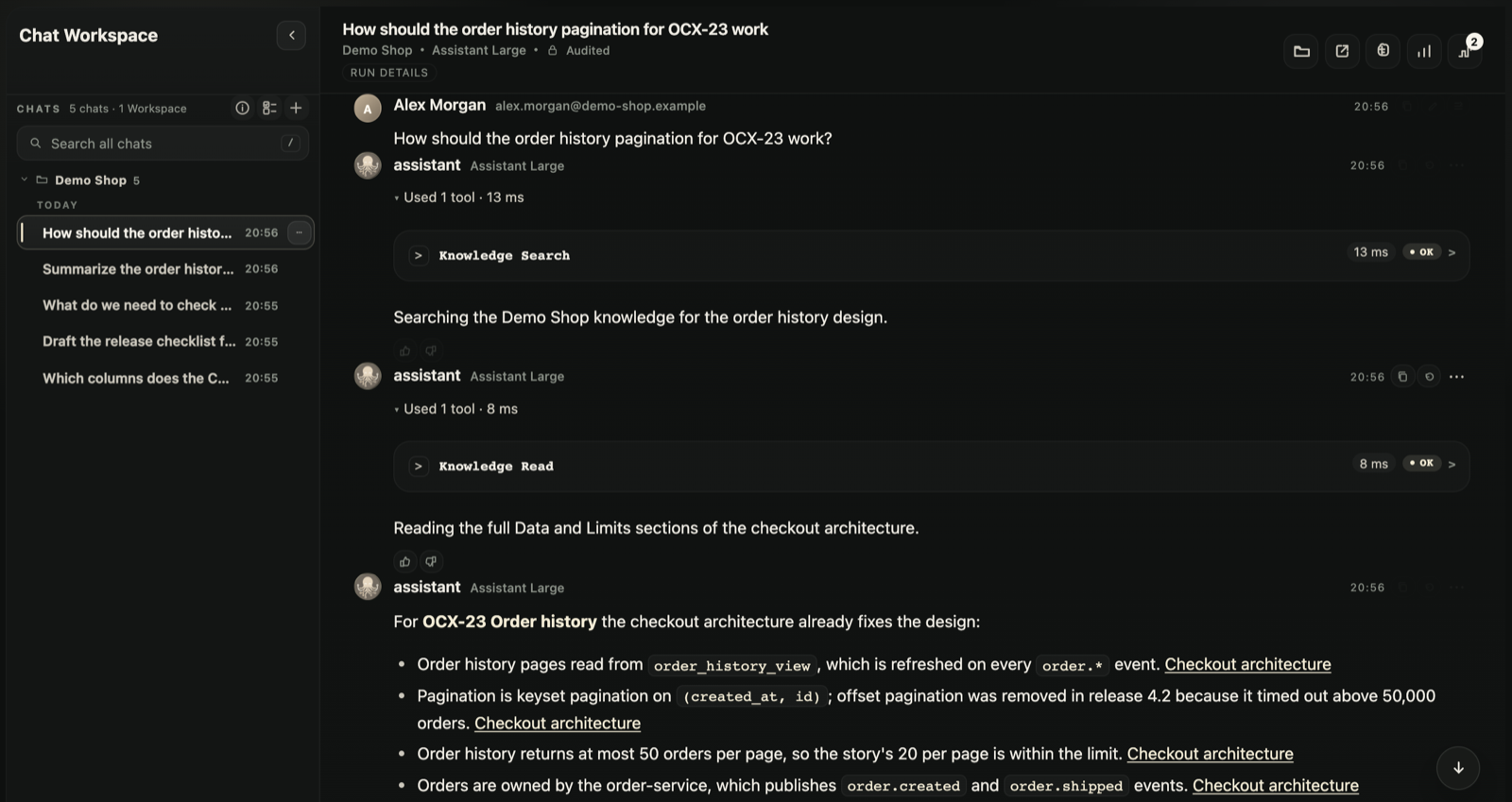
Each answer has a Sources · n button (or Sources · none cited). It opens Sources & evidence, which lists each cited link with the statement it supports. A marker such as [1] in the text opens the same panel on that source. Opening a source uses your own permissions. A citation shows where a statement comes from; it does not verify the claim.
Previews of HTML and Office files
Files an agent produces open in the Preview side panel, with Expand, Open and Download.
- HTML renders in an isolated frame with no access to your session.
- Word, Excel and PowerPoint files open on a rendered Preview. Tabs switch to Text, Outline, Annotations, Stats, Issues and, for Word, Forms. Open PDF opens the rendered file, and Details shows file details beside it. If rendering fails you see Preview unavailable, and the other tabs still work.
- Images, PDFs and text files preview directly.
Verification note on replies
A status row under each reply says what was checked. A normal chat answer reads Finished, unverified with Verification: Not evaluated: no verification step ran. Evidence shows Sources cited, No source evidence this turn, Some claims unsourced or Answer withheld. Some claims unsourced means the answer is shown in full, and each claim without a source is marked in place. Answer withheld means the answer did not cite its sources and was not shown. Details opens the full execution record. Other states, such as Waiting for approval or Failed, add a Next: hint.
Treat an unverified answer as a first draft and check it before you rely on it.
Limits today
- Search covers the title and your first message, not the whole conversation.
- There are only two
/commands. - Only Workspace admins and owners can use Always for this Workspace.
- Only administrators can delete chats.