
First run
BuiltOctryx AI is the layer above your coding agent: you bring Claude Code (Codex support is experimental), Octryx AI brings the process, the checks and the record. This walkthrough starts Octryx AI on your machine with a small local demo and runs one real workflow on it.
A local demo, not for production. Everything listens on 127.0.0.1 only.
What has been checked
Steps 1 to 5 were checked on a fresh clone of this repository. Steps 6 to 9 were walked through twice on a fresh compose demo by someone following this page, the second time on the current version. Both times the Claude subscription was already logged in: octryx-claude login --seat itself was not run in those tests. It is Claude Code's own subscription login and needs your browser.
You need
- Docker Desktop, Rancher Desktop or Podman with
docker compose2.23 or newer (docker compose version). Give the container engine 8 GB of memory and 20 GB of disk. - Access to one model: an Anthropic API key, an OpenAI-compatible endpoint with a key, or AWS Bedrock.
- Chrome, Edge or Firefox.
- For the run in step 6: Claude Code with a Claude subscription (Pro or Max), signed in, and
git.
What you will see
- a Workspace Demo Shop with a small sample shop on a local stand-in for GitHub, its docs as Knowledge, a PR review bot and two work items;
- the demo bug OCX-1 "Order total takes the discount as an amount";
- Octryx AI starting the bug workflow on your machine: your Claude Code reproduces the bug with a failing test and fixes it, and the platform checks the test red before and green after;
- a pull request on the local GitHub, and the run's record: phases, evidence, tokens and cost;
- the review bot's comments on that pull request.
The first build of the images takes 10 to 20 minutes, once. On our development stack, with the images built, one cold run took 2:57 min from the stack's start to the review bot's comment: from Start to the pull request 69 s, the bot's review 23 s later. See Status and results.
1. Get the code and choose a model
git clone https://github.com/octryx-ai/octryx.git
cd octryx
cp .env.example .env
Fill in one model block in .env, for example Anthropic:
LLM_PROVIDER=anthropic
AGENT_DEFAULT_MODEL=claude-sonnet-5-5
LLM_API_KEY=<your key>
Nothing else goes into .env: the database password, the signing and encryption keys and the object store credentials are generated on the first start and stay in Docker volumes.
The model settings are read only on the first start; after that you change models under Admin › Models. To start over with another block in .env, remove the install first with down -v (see Stop or start over), which deletes its data.
2. Start Octryx AI with the demo
docker compose -f docker-compose.yml -f docker-compose.demo.yml up -d --build
docker compose -f docker-compose.yml -f docker-compose.demo.yml logs demo
The first build takes 10 to 20 minutes. The demo is ready when its log shows demo: ready in the Workspace 'Demo Shop', followed by its address. Port 8000 or 8434 taken? Set OCTRYX_PORT and OCTRYX_DEMO_GIT_PORT in .env first.
3. Create your administrator
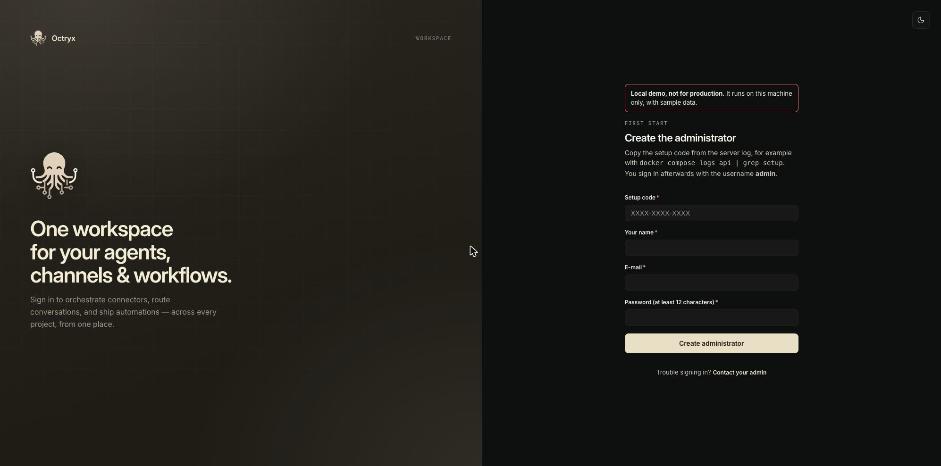
There is no default password. The first start prints a one-time setup code:
docker compose -f docker-compose.yml -f docker-compose.demo.yml logs api | grep "setup code"Open http://localhost:8000/chat/setup and enter the code, your name, e-mail and a password of at least 12 characters. From then on you sign in as admin with that password.
4. Open the Demo Shop
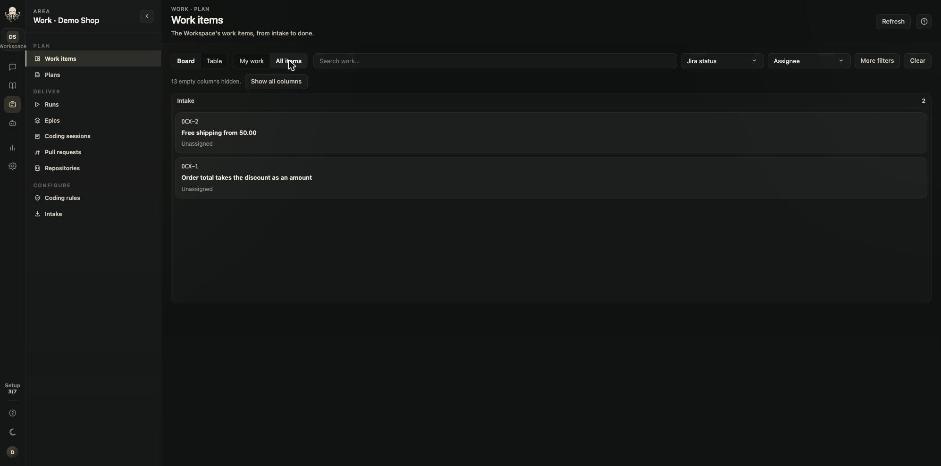
Choose the Workspace with the top icon in the left bar, then Demo Shop. Then Work in the left bar: it opens on Runs. Choose Work items: it opens on My work, which is empty because nothing is assigned to you yet. Its button Show all items (or the tab All items) lists OCX-1 and OCX-2.
5. Search the Knowledge
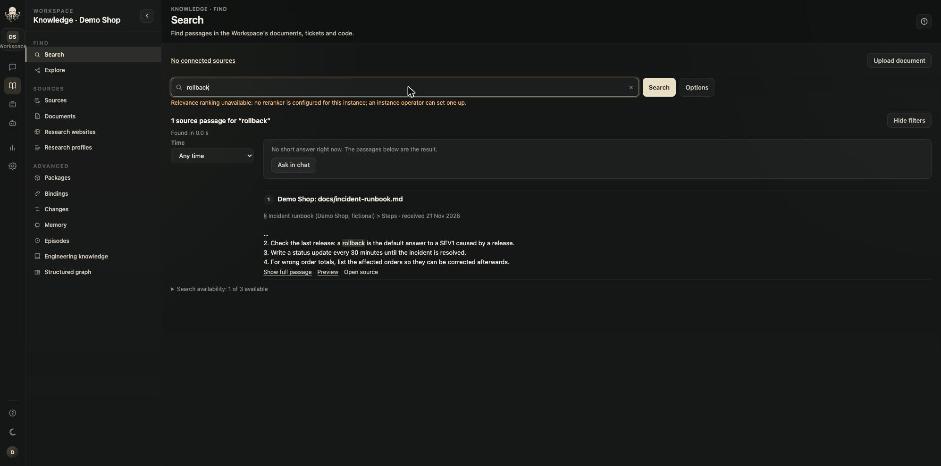
Knowledge › Search for "rollback" finds the Demo Shop's incident runbook, with the passage, its source file and section.
Without Claude Code: see a finished run
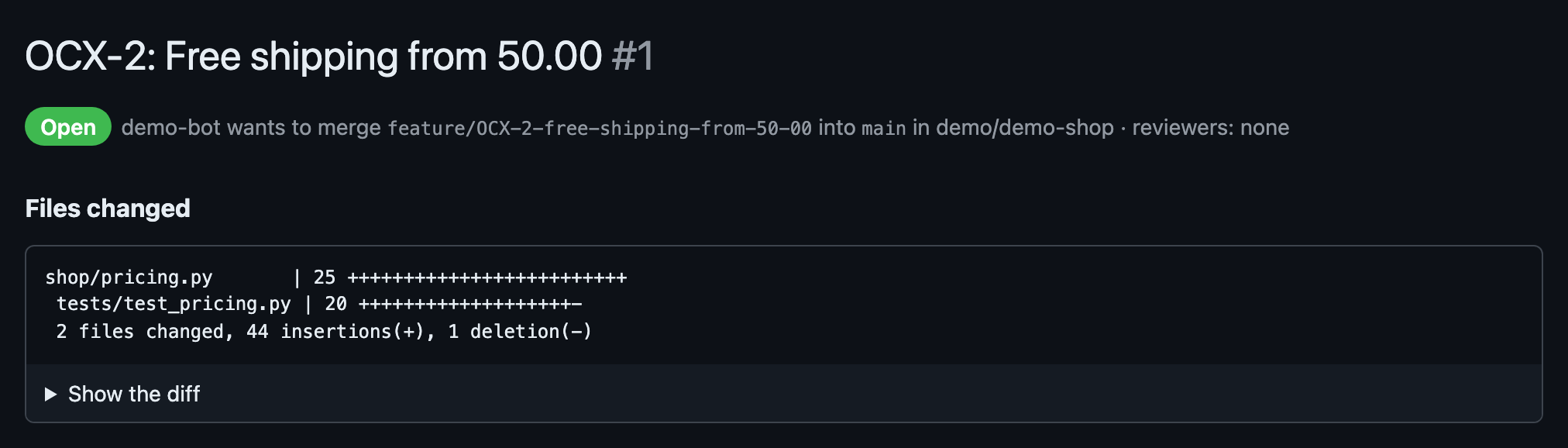
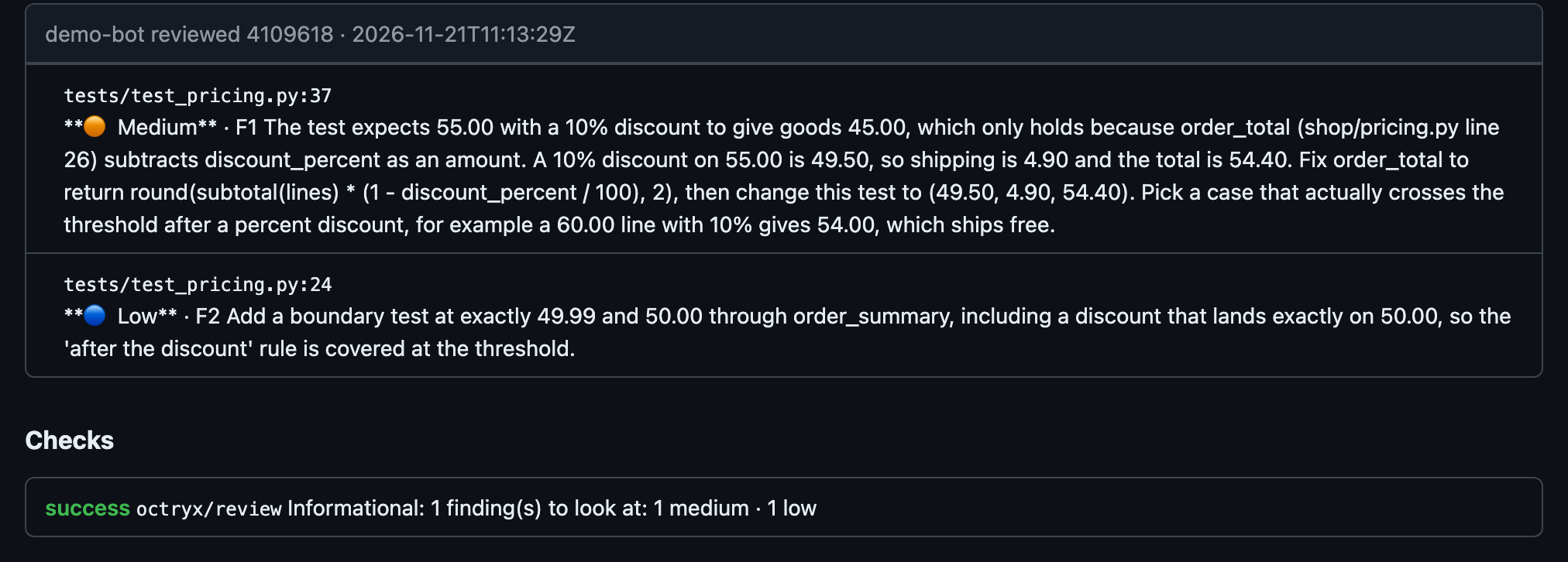
Work › Runs shows a run with the badge Sample run: a real Story / epic delivery run of OCX-2, recorded on another install, with its phases, its pull request and the bot's review on the local GitHub. The bot asks for changes there: the new tests lock in the discount bug of OCX-1, which is still open.
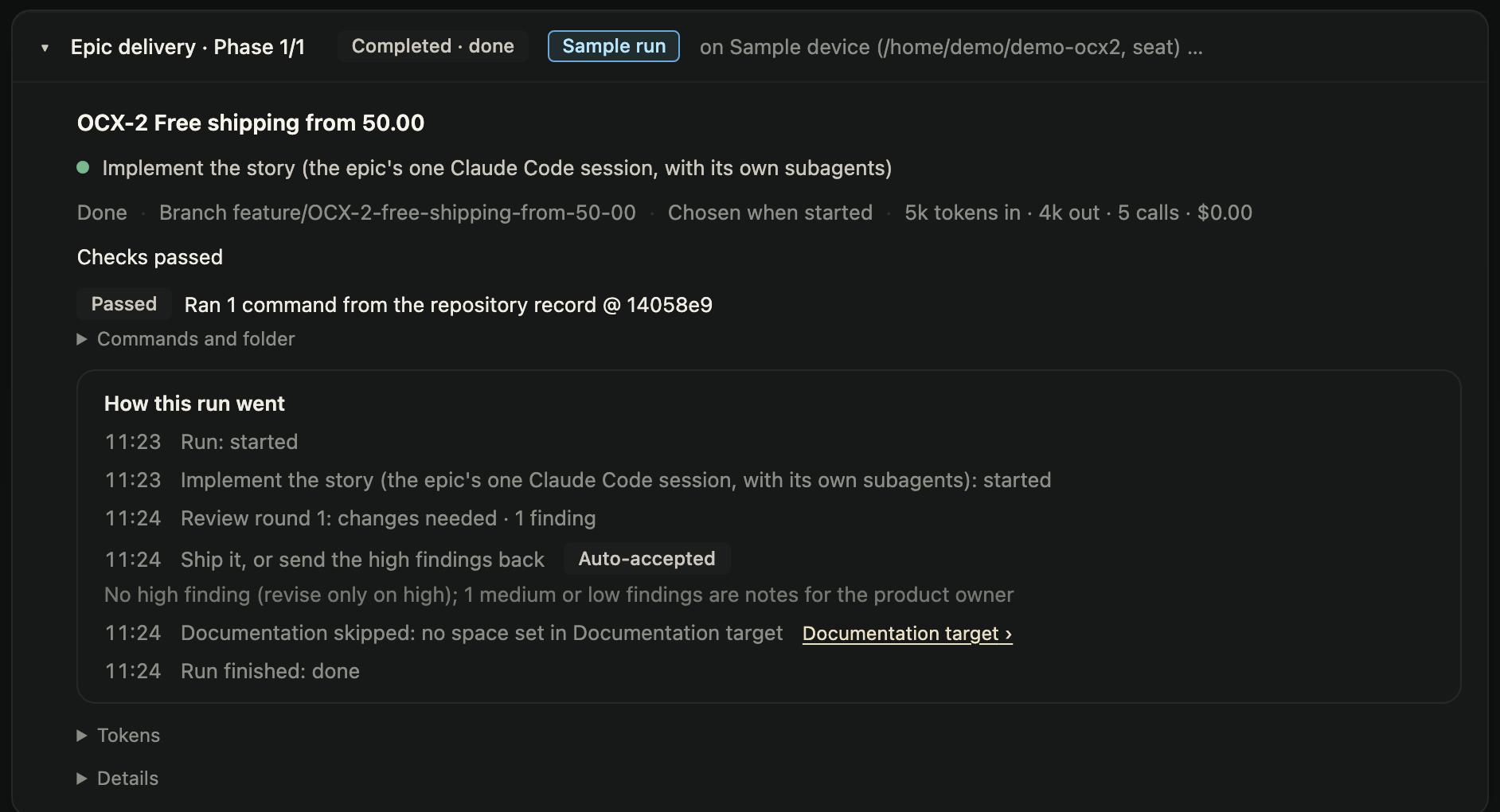
Its pull request and the bot's review are on the local GitHub at http://127.0.0.1:8434/demo/demo-shop/pull/1. That page is the demo's own read-only stand-in for GitHub, so formatting shows as plain text there.
6. Connect your machine
Workflows that only read or write text run on the Octryx AI server with the model from .env. A run that changes and tests code runs on your machine, with your Claude Code paired through the launcher: Octryx AI does not build or test code on its server. So without a paired machine, Bug fix with a reproduction test and Story / epic delivery do not start: the Start workflow form says so and how to pair Claude Code, and a refused start ends with "No device yet: pair Claude Code with the launcher (Agents › Install octryx-claude)." Spec writing is allowed on the server, but it is made for an epic (it interviews you, writes a specification for your approval and splits it into stories), not for a small item like OCX-1 or OCX-2. Where an admin has turned on Jira intake & triage and the triage hands over to such a workflow, the run card shows Follow-up not started with the reason and the link Pair Claude Code with the launcher.
In Octryx AI, choose Agents (an icon in the left bar), then Clients › Install octryx-claude. It shows the install line for your Workspace; run it in a terminal. The installer opens the browser to sign in: choose Authorize, and the terminal says "Logged in … Workspace: Demo Shop". Then, once:
octryx-claude login --seat                    # your Claude subscription, for runs on your machine
git clone http://127.0.0.1:8434/demo/demo-shop.git ~/octryx-demo/demo-shop
octryx-claude device enable --folder ~/octryx-demo/demo-shop
A run works in a clone of its repository: the device folder is that clone. octryx-claude device status says connected. The device takes your machine's name.
Do not skip login --seat. Without it device status says "seat: no login recorded by this launcher", and the device offers only the governed profile, which runs on a Claude model of the platform itself and does not use your subscription. This walkthrough uses the seat.
7. Start the run
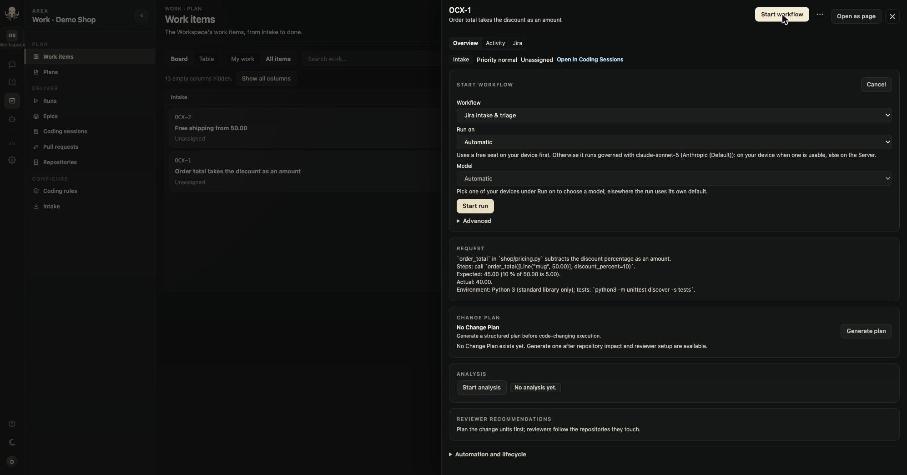
In Work › Work items › All items, open OCX-1 and choose Start workflow. Nothing is preselected (Choose a workflow): as Workflow choose Bug fix with a reproduction test, under Run on your machine (<machine name> · demo-shop · seat), leave Model on Automatic, then Start run. You can also write "Fix OCX-1" in the chat and pick that workflow.
8. Watch it
In Work › Runs the run goes through its phases. OCX-1 is an ordinary bug, size class S (see Size classes), so reproduction and fix happen in one step:
- Prepare the working folder
- Minimal fix, starting with a test that fails because of the bug
- The CI pipeline: the declared tests, run without the agent, including the proof that the new test fails on the old code
- The independent review
- Push and pull request
The separate reproduce phase and the browser test are skipped for this class; the run records each skipped step with its reason. On a fresh demo the pull request came about 6 minutes after Start.
The run card says what the run proved and what it cost, and links the pull request. The local GitHub also lists it at http://127.0.0.1:8434/_fake/pulls. After the pull request the run waits for the merge, and in the demo it stays there: the local stand-in for GitHub cannot merge.
9. See the review bot
The demo switches the review bot on for demo/demo-shop (status inform). A pull request that a run opens is picked up within seconds. The bot posts its review on the local GitHub: a summary with the work item's acceptance criteria as a table (each criterion, whether the change covers it, and the evidence), and inline findings with a severity, file and line. For OCX-1 the criterion comes from the bug's expected total, 45.00. The commit status octryx/review is green, with any findings counted, for example "No blocking findings" or "No blocking findings · 1 low": status inform reports and never blocks.
Reply in the thread with @octryx explain, @octryx pause, @octryx resume or @octryx ignore <reason>. Push a fix and the bot reviews only what changed: the finding is marked fixed and its thread is resolved.
Stop or start over
docker compose -f docker-compose.yml -f docker-compose.demo.yml down       # stop
docker compose -f docker-compose.yml -f docker-compose.demo.yml down -v    # delete everything: database, documents, generated keys
To back up and restore an install (database, generated keys, documents), see Back up and restore.
To unpair your machine: octryx-claude device disable (your login stays). To remove the launcher: curl -fsSL 'http://localhost:8000/octryx-claude/install.sh' | bash -s -- uninstall. See Launcher and devices.
Next
- OCX-2 "Free shipping from 50.00": a story. The sample run already delivered it; a new Story / epic delivery on OCX-2 continues on that run's branch and pull request.
- Your own repository: Work › Repositories › Add a repository for runs. See Git repositories and pull requests.
- An install without the demo: Docker Compose.