
Set up the review bot
Built The bot is off until a Workspace admin or owner switches it on for a repository.Before you start
- The repository is in the Workspace, through a GitHub, GitLab or Bitbucket connection. See Connections and Git and pull requests.
- The connection may write pull request comments. The bot reads the change through a read-only checkout and posts through the connection's governed tools.
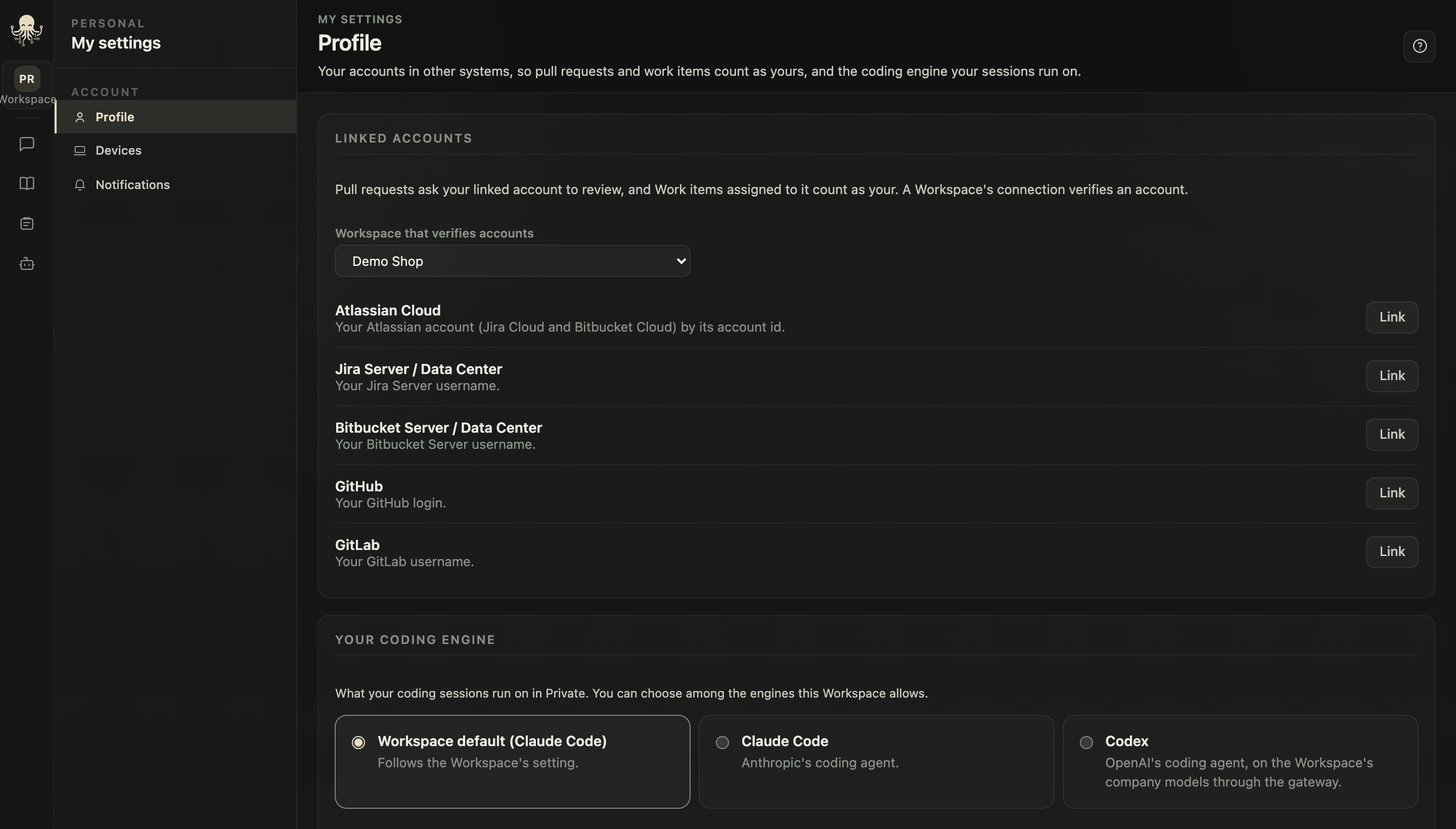
- People who want to use commands link their host account to Octryx AI under My settings › Profile, card Linked accounts.
1. Switch it on for a repository
Open Admin › Workspaces, choose the Workspace, then Workspace settings › Data › Repositories. Below the list of repositories, the section PR review bot has one card per GitHub, GitLab or Bitbucket repository.
Under Review pull requests, choose:
| Option | What happens |
|---|---|
| Off | Nothing is reviewed or posted on this repository. |
| On every push (webhook) | Each pull request event starts a review; the bot waits up to 90 seconds for a newer push first. |
| Hourly sync | Open pull requests are checked once an hour. |
| Webhook and hourly sync (recommended) | Reviews at once; the hourly sync catches what a webhook missed. |
Choose the status, then Save. Sync now runs the sync at once; it needs Hourly sync or Webhook and hourly sync, saved.
A local installation that the host cannot reach uses Hourly sync. Pull requests opened by Octryx AI's own runs are picked up within about 5 seconds either way.
2. Add the pull request webhook
For On every push and Webhook and hourly sync, the Workspace needs one pull request webhook:
- Open Admin › Webhooks and create a webhook with the source Pull request (GitHub, GitLab, Bitbucket).
- The sending tool can't sign a timestamp is ticked and locked for this source: GitHub, GitLab and Bitbucket send no timestamp. Repeats of the same call within 5 minutes are still refused.
- Copy the address and the secret. The secret is shown only once, in the screen and in the API, when the webhook is created or the secret is rotated.
- Add the webhook in your Git host, as below.
The PR review bot card then says "The Workspace's pull request webhook is set up."
GitHub
Repository › Settings › Webhooks › Add webhook: the address as Payload URL, content type application/json, the secret as Secret. Choose the events Pull requests, Issue comments and Pull request review comments.
GitLab
Project › Settings › Webhooks: the address as URL, the secret as Secret token. Tick Merge request events and Comments.
Bitbucket
- Cloud: Repository settings › Webhooks, with the triggers Pull request: Created, Updated and Comment created.
- Server and Data Center: Repository settings › Webhooks, with the events Opened, Source branch updated and Comment added, and the secret.
What the webhook does
- Only the sender's signature counts; a call with a wrong secret is refused.
- A delivery that comes twice is refused the second time.
- At most 120 calls per minute per webhook and sender.
- A start waits 90 seconds for a newer push: if one comes, only the newest commit is reviewed.
- A test call from the webhook screen starts nothing.
3. Check it
Open a pull request. Within about 90 seconds (webhook) or at the next sync, the status octryx/review (GitHub) or octryx-review (GitLab, Bitbucket) shows pending, then the summary comment appears.
What is never reviewed
- pull requests from forks;
- drafts, unless Review drafts is on; a draft is reviewed once it is ready for review;
- a commit that was already reviewed (use
@octryx review fullto review it again); - pull requests on which someone wrote
@octryx pause.